Locking and Unlocking Returns
Locking your returns is a best practice once they are complete. In Stratus, any return that is not locked will automatically recalculate when updates are applied. Locking completed returns helps protect your final numbers and gives you a clear visual indicator that a return is finished.
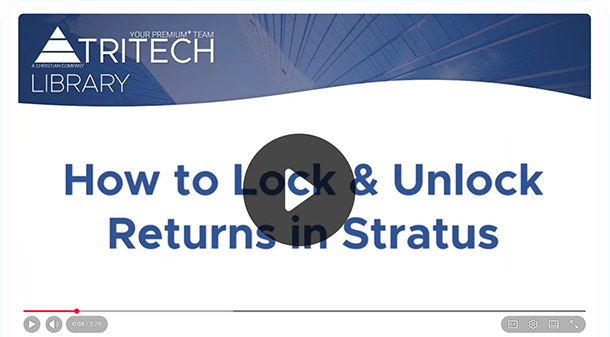
How to Lock Returns
- Right-click on the return you want to lock and select Lock Return.
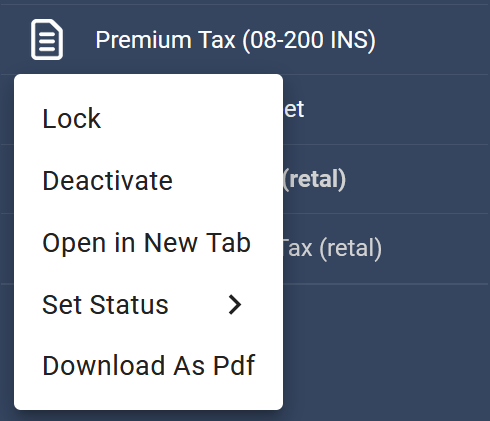
- To lock an entire jurisdiction at once, right-click the jurisdiction and select Lock All.
- Need to make a change later? You can unlock a return or jurisdiction using the same right-click options.
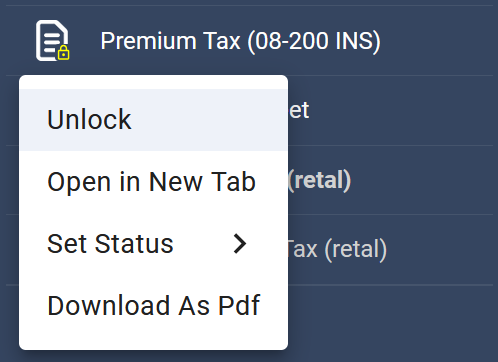
- Once a return is locked, you’ll see a yellow padlock icon in the active tree.

Locking Multiple Returns
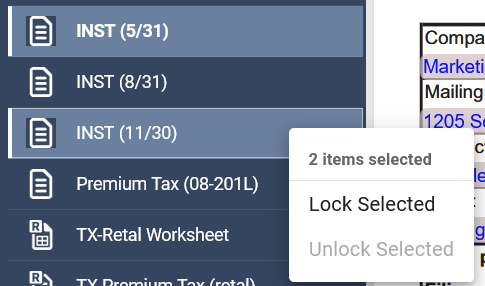
Multiple returns can also be locked at once. Select a return, then hold the Ctrl key and select additional returns. Right-click and choose the lock option for the selected items.
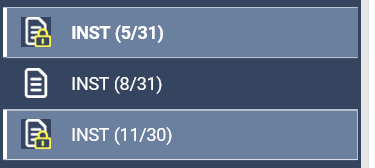
When a Return is Locked
- Input fields can no longer be edited.
- Notes may still be added if you have the appropriate permissions.
- Changes to input schedules will not flow into a locked return.
Making it a habit to lock returns as you file them helps prevent unintended changes and keeps your work organized.
Was this helpful?